Running accounts7 min read
How to Automate WhatsApp Messages on Android
Written by Petr Kynčl
You want your phone to send a WhatsApp message on its own. Maybe when an order ships, when a booking comes in, or just at 9am every Monday.
There is no single obvious way to do that, and the options people recommend are not equally good. Some need a monthly contract with a provider. Some stop working the moment WhatsApp changes a button. One of them is free but only half-automates the job.
Here is each approach, what it actually costs you, and where it breaks.
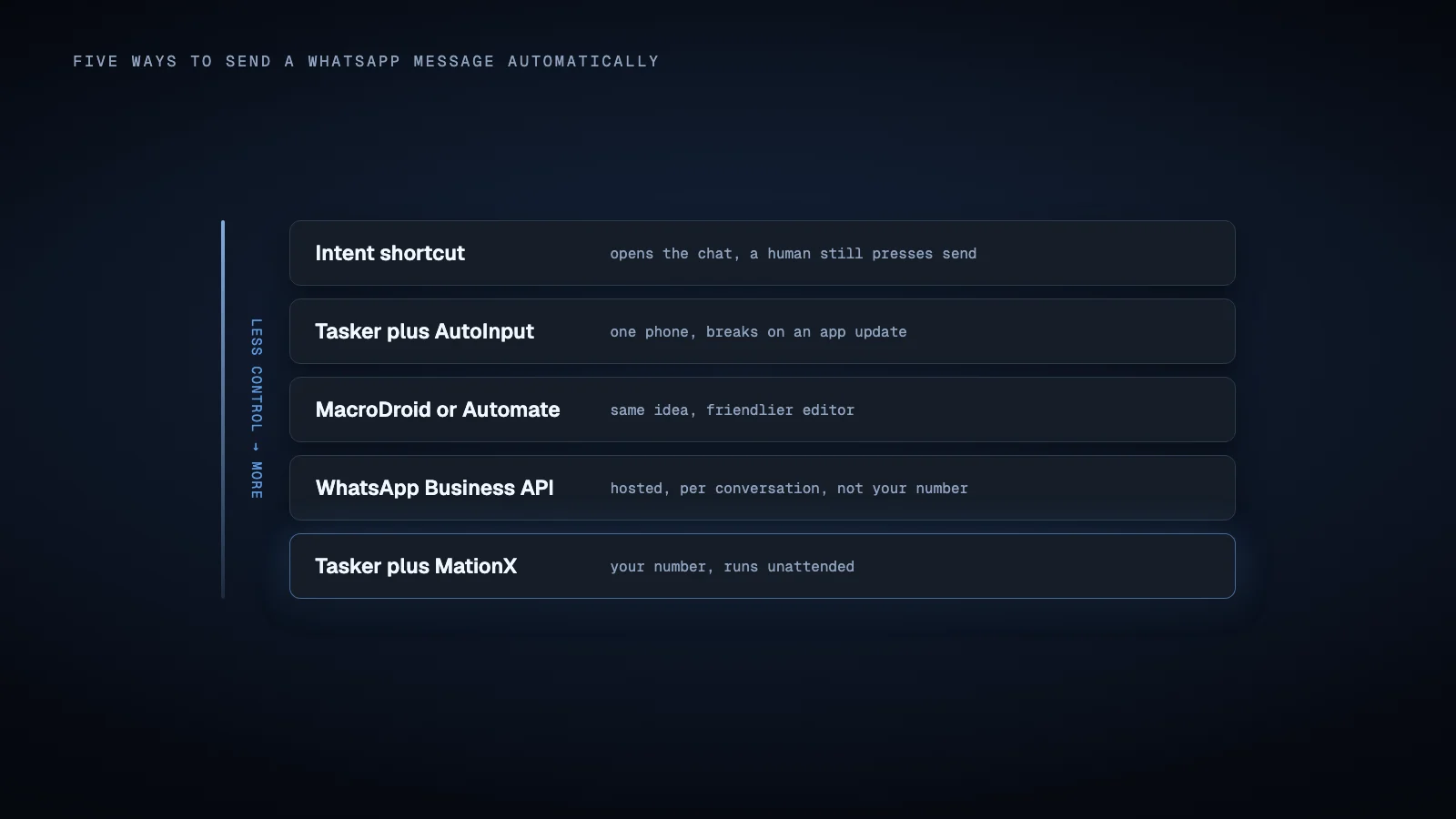
The five ways people do this
1. An intent shortcut (free, but not really automation)
Android lets you open WhatsApp with a chat and a message already typed in. Tasker, MacroDroid and even a plain browser link (wa.me/number?text=...) can do it.
Good: free, takes two minutes, nothing to install. Bad: it stops at the typed message. A person still has to hit send.
If your goal is fewer taps, this is enough. If your goal is a phone that works while you sleep, it is not automation at all.
2. Tasker plus AutoInput
Tasker handles the trigger. AutoInput, a paid plugin, uses Android's accessibility service to tap and type inside WhatsApp like a person.
Good: genuinely automatic, no approval from anyone, runs on a phone you already own. Bad: setup is fiddly, and you are matching UI elements in an app that updates every few weeks. When WhatsApp moves something, your automation stops and does not tell you. Everything lives on the phone, so building anything complex means squinting at a touchscreen.
This is where most people land, and it works until it does not.
3. MacroDroid or Automate
Both are friendlier than Tasker. Automate in particular uses a flowchart instead of a list of actions, which is easier to follow.
Good: free tiers, gentler learning curve, decent trigger support. Bad: the same wall. Neither has a native "send a WhatsApp message" action, so you are back to accessibility tricks or intents. And like Tasker, you build on the phone.
4. The WhatsApp Business API
The official route. You apply through a provider, verify your business, and send through approved templates.
Good: supported, stable, built for volume, and the route WhatsApp itself sanctions for business messaging. Bad: it is a different product with a different price tag. Business verification, a provider contract, per-conversation fees, and template approval for anything you start. There is no way to just message someone freely.
If you are a company sending thousands of transactional notifications, this is correct and you should stop reading. For "text this customer when their order is ready", it is a lot of process for one message.
5. Tasker plus MationX
Keep Tasker for the trigger, and hand the WhatsApp part to something built for driving apps.
Good: you build the automation on a desktop as a visual flow instead of on the phone, targeting survives app updates better because elements are matched with fallbacks, you get a run history so a failure is visible, and the same automation runs on one phone or on many. Bad: it is a paid product, and it is still UI automation, so a big enough WhatsApp redesign will still need a tweak. It also does not remove WhatsApp's own limits on unsolicited messaging.
Full disclosure: this one is ours. It exists because option 2 kept breaking for our own clients.
Which one to pick
- You just want fewer taps. Intent shortcut. Free, done in minutes.
- One phone, you are technical, you enjoy tinkering. Tasker and AutoInput.
- A registered business sending high-volume transactional messages. WhatsApp Business API.
- It needs to keep running, on more than one device, and someone will notice if it breaks. Tasker and MationX, or something like it.
Setting up the Tasker and MationX route
If you picked the last option, this is the whole setup. It takes about five minutes.
Step 1. Build the message flow. On your desktop, lay out what should happen: open WhatsApp, go to the chat, type the text, send. Because it drives the real app on a real device, there is no template approval and no provider.
Step 2. Connect Tasker. MationX exposes the flow so Tasker can start it, the same way it starts any plugin action.
Step 3. Trigger it. Add the action to whatever Tasker profile you already have. Pass the number and the message text in as variables, so one flow covers every case instead of one per contact.
That third step is the only part that touches Tasker, and it is a single action.
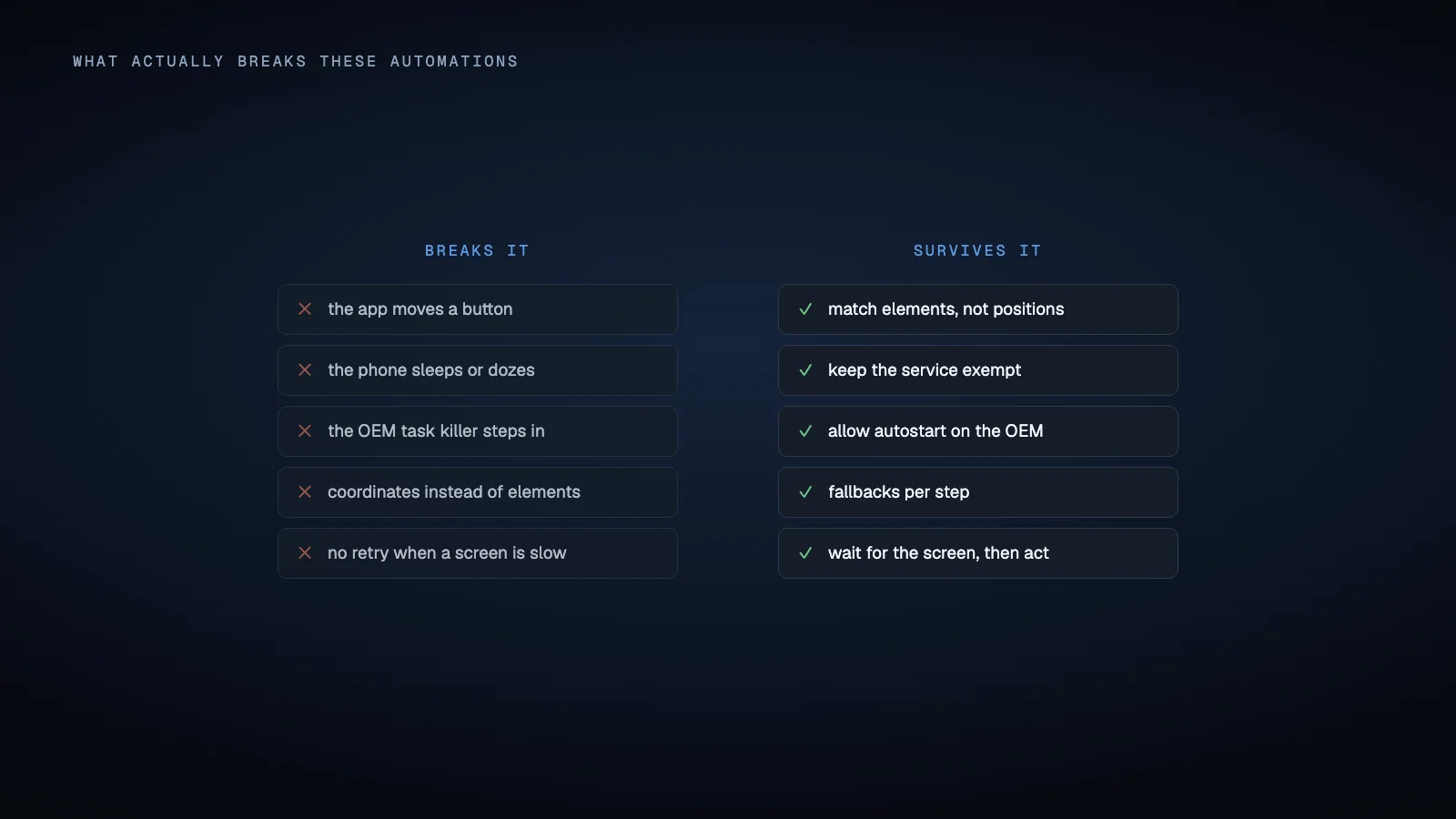
What actually breaks these automations
Whichever route you take, the failures are the same three:
The app updated. Any UI-based approach targets things on screen. When WhatsApp moves them, the automation misses. Matching on stable identifiers rather than screen coordinates buys you a lot here, but nothing makes it permanent.
Android killed it in the background. This is the most common one and it has nothing to do with WhatsApp. Battery optimisation puts accessibility services to sleep, usually overnight, right after you finished testing with the screen on. Set both apps to unrestricted battery use and add them to your ROM's never-sleep list.
Nobody noticed it stopped. The quiet killer. An automation that fails silently is worse than no automation, because you are relying on messages that are not going out. Whatever you use, make sure a failure is visible somewhere.
Staying on the right side of WhatsApp
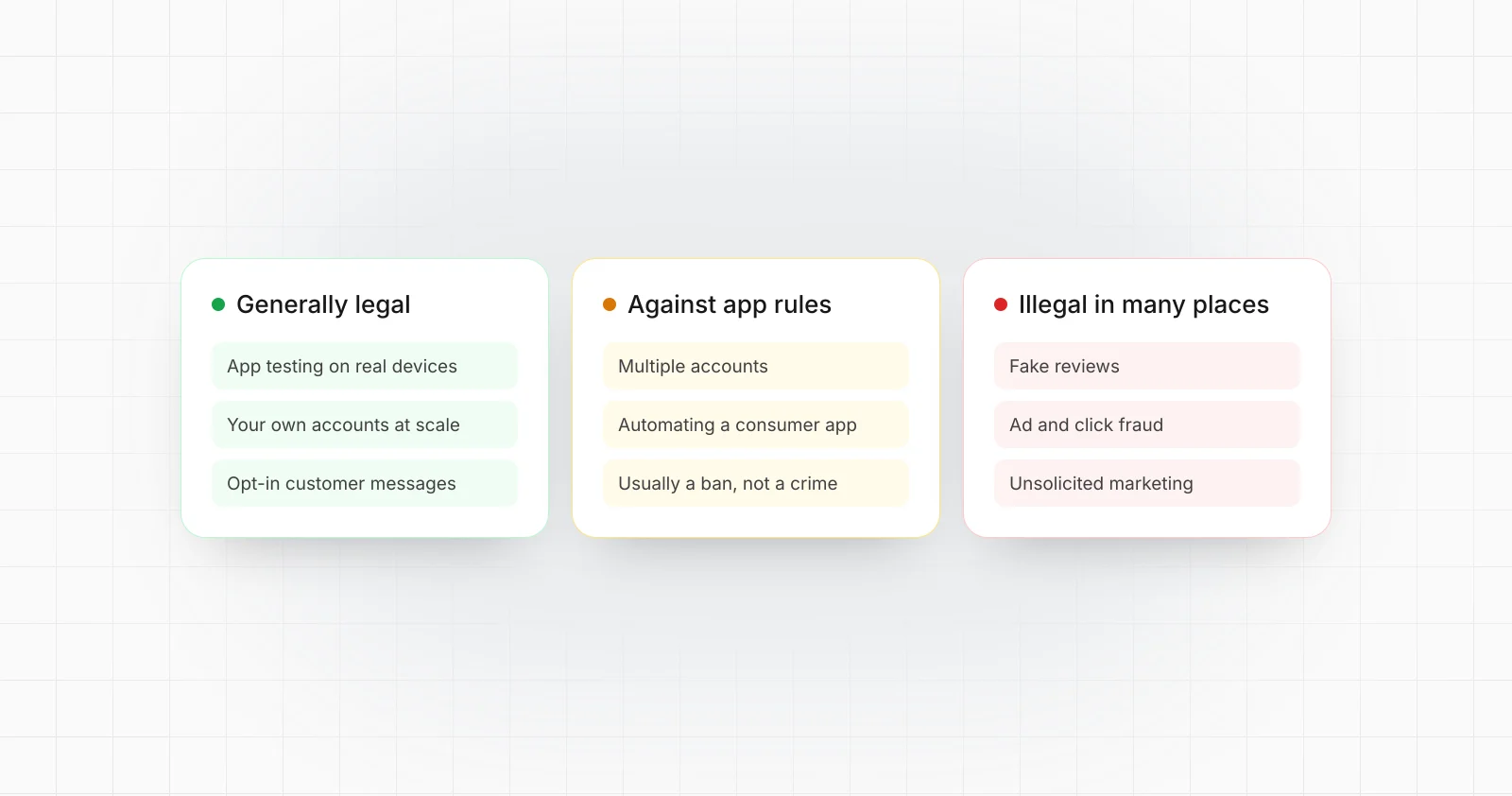
Worth saying plainly, because it affects every option above: automating your own account means WhatsApp's rules apply to you.
Sending expected messages to people who gave you their number is fine. Bulk messaging strangers gets numbers banned, and no tool prevents that. If you are doing cold outreach at volume, the Business API and its opt-in rules exist for a reason.
Running WhatsApp across many numbers
Once one number works, the next question is usually how to run ten or a hundred. A few habits matter more than the tool.
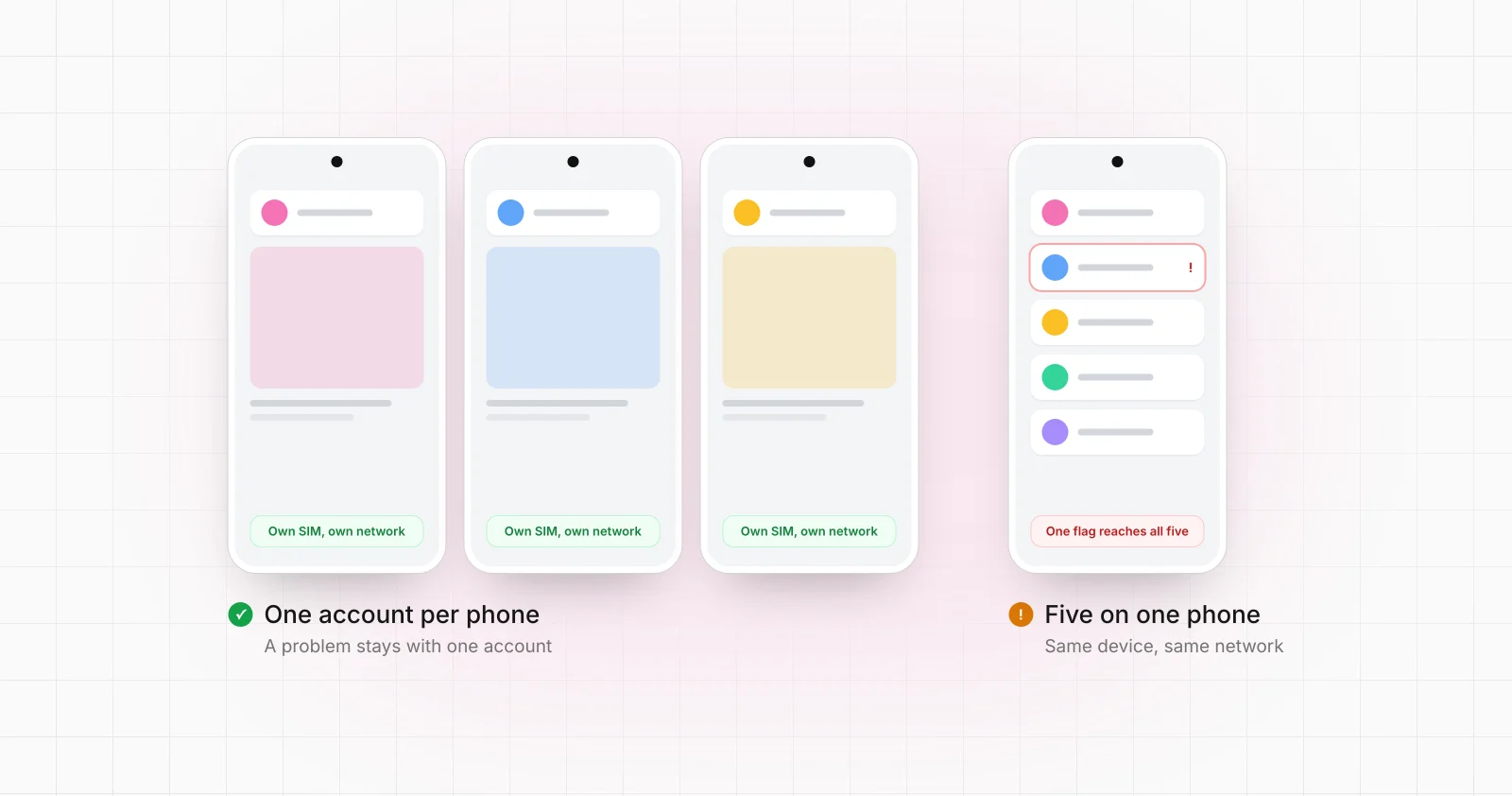
One number per phone. Give each number its own Android phone, whether that is a handset on a shelf, a box phone or a cloud phone. One account per device keeps the setup simple, and when something fails you know exactly which number it was.
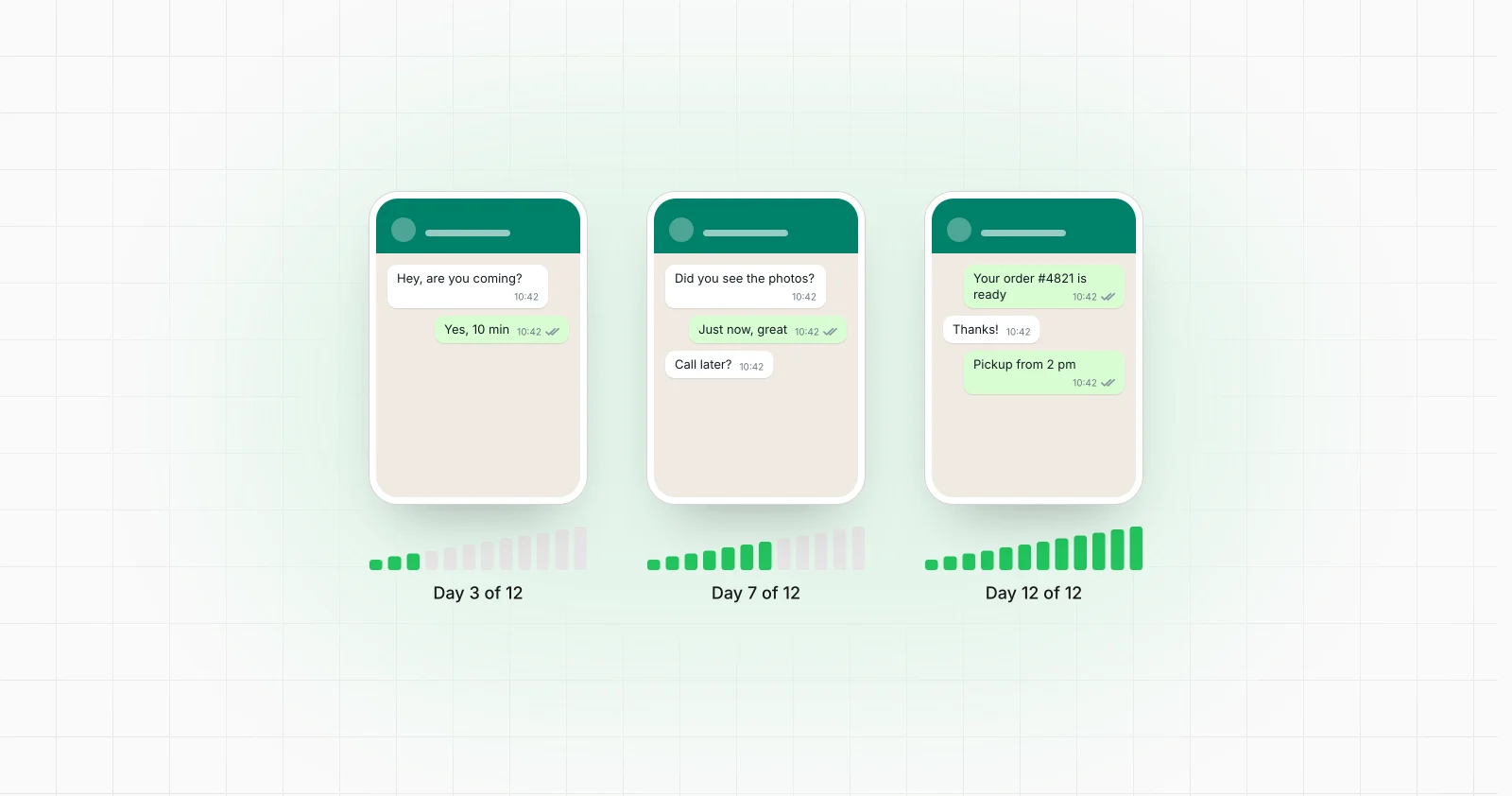
Warm new numbers up gradually. A brand new number that sends dozens of messages on its first day does not look like a person. Start with a little normal use, such as replies and saved contacts, and raise the volume over days and weeks rather than all at once. Warming up lowers the risk. It does not remove it, and no routine makes a number safe from a ban.
Send from a backend, not from each phone. Instead of a Tasker profile on every device, your backend decides which number sends what, queues the job for that phone and gets a callback with the result, so a failed send shows up in your system instead of vanishing. How a backend reaches many devices at once is its own topic.
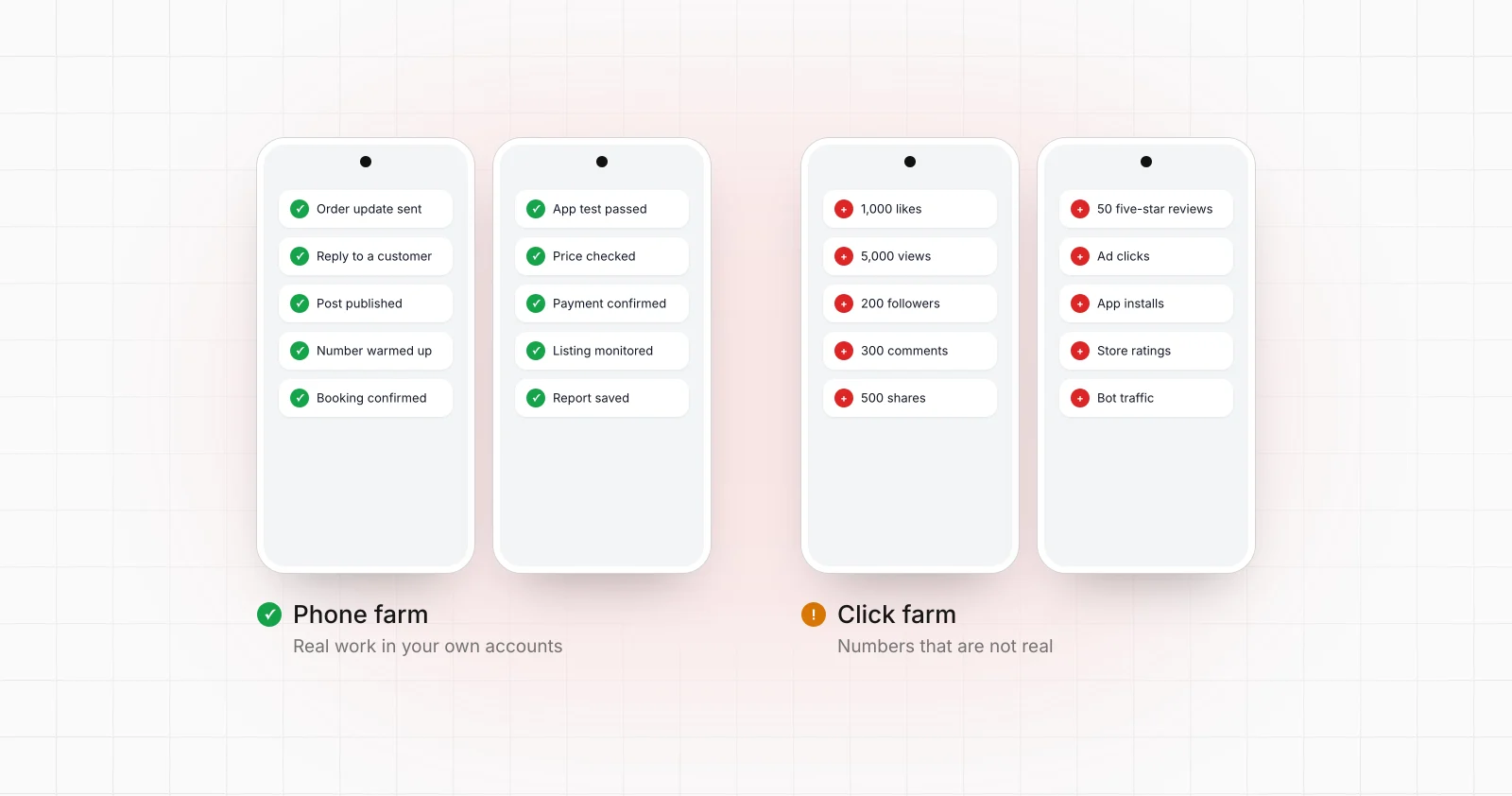
Put together, that is a WhatsApp phone farm: many numbers, warmed up one by one, sending on command from your own system.
Common questions
Can I do this without root? Yes. Every approach here works on a stock, unrooted phone.
Will WhatsApp ban me? Nobody can guarantee that, but automating conversations people expect is not what WhatsApp goes after. Bulk unsolicited messaging is what gets accounts banned, regardless of how you send them.
Can I send to a number that is not in my contacts?
Yes, through the wa.me link format, which all of these can use.
Can I send images or files? With UI-based automation, yes, because you are driving the app itself. Through the Business API, only what your approved template allows.
What about several phones at once? This is where phone-based tools stop. Tasker, MacroDroid and Automate are configured per device, so ten phones means ten setups and ten updates every time something changes. If that is your situation, you want something that manages devices centrally.
If you would rather not build or maintain any of this, we build it for you and run it, on your own phones or on cloud Android phones.