How it works6 min read
How to Run Tasker Automations 24/7 (and Why They Stop)
Written by Petr Kynčl
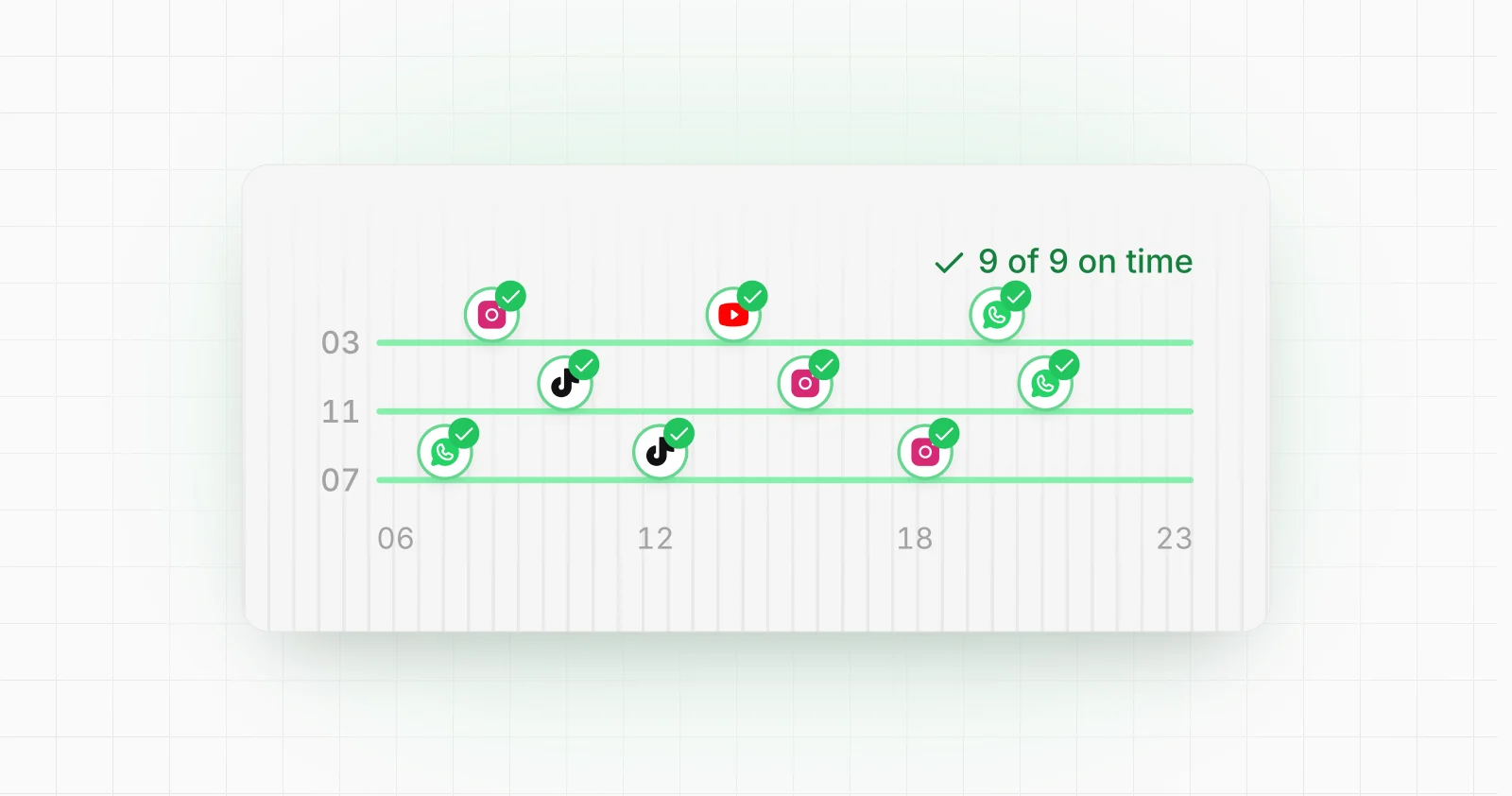
A Tasker profile that works perfectly while you watch it can quietly stop working at 3 a.m. Nothing crashes and nothing tells you. The task simply never runs, and you find out the next morning, or the next week.
Almost always the profile itself is fine. Android stopped it. Phones are built to save battery, and a task that waits in the background for hours is exactly what the battery saver is designed to put to sleep. Running Tasker 24/7 is less about writing a better task and more about keeping Android from interfering with the one you have, then noticing when it does anyway.
This guide covers why Tasker automations stop, the settings that keep them running, how to know when one has failed, and when a single phone is no longer the right place for the job.
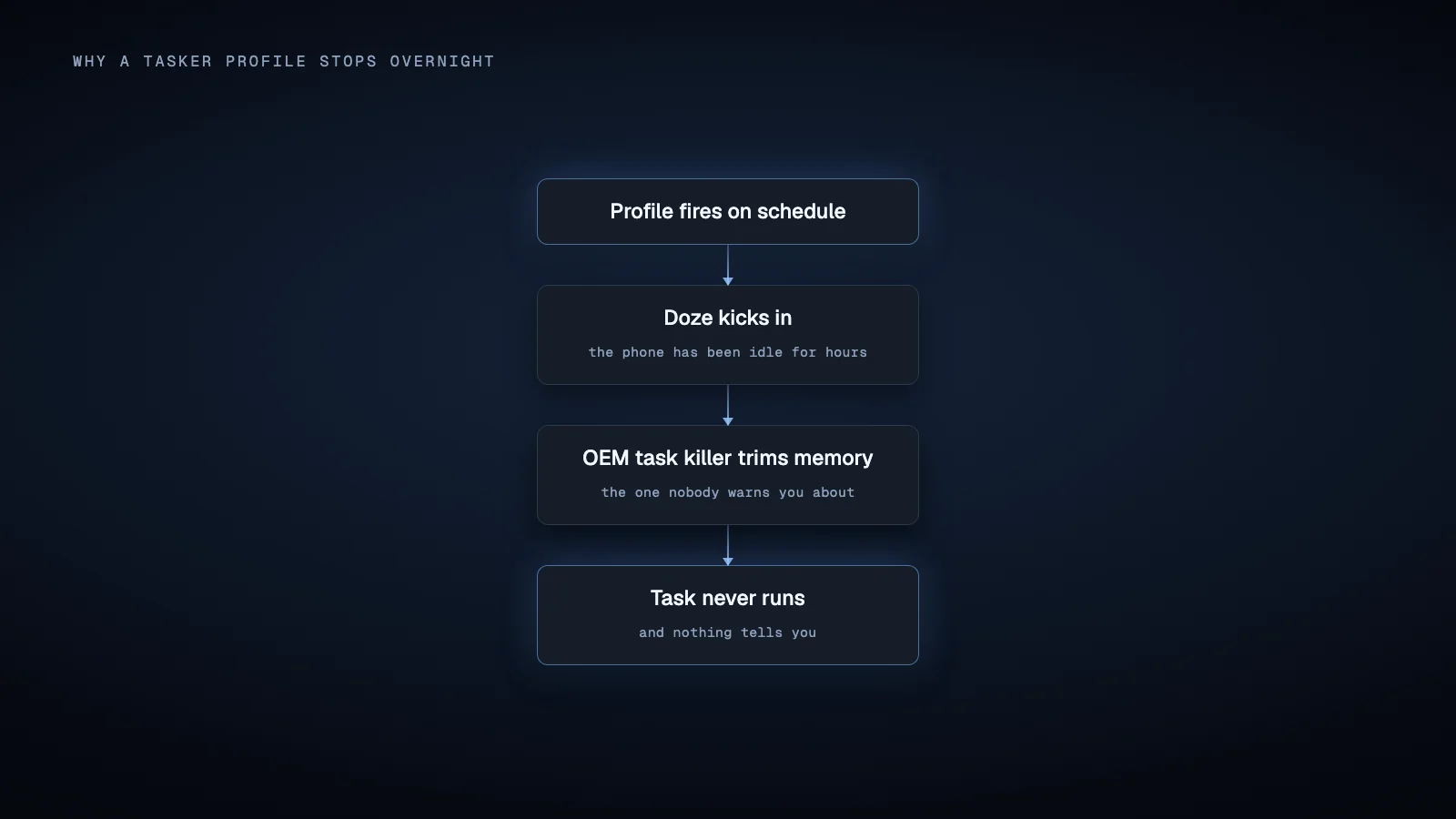
Why Tasker automations stop
There are four usual suspects, and on a busy phone it is often more than one at once.
Doze and app standby. When the screen has been off for a while and the phone is not moving, Android enters Doze: background work is batched into short maintenance windows, network access is cut between them, and ordinary alarms are deferred. A profile set for 3:00 can fire at 3:40, or not until you pick the phone up. App standby buckets add to this, putting apps you have not opened recently on a tighter budget.
The manufacturer's task killer. On top of stock Android, many manufacturers ship their own battery management that closes background apps far more aggressively. Samsung, Xiaomi, Huawei, OnePlus and others each do it differently, and an update to the phone can turn it back on. The site dontkillmyapp.com keeps a per-manufacturer list of what to change.
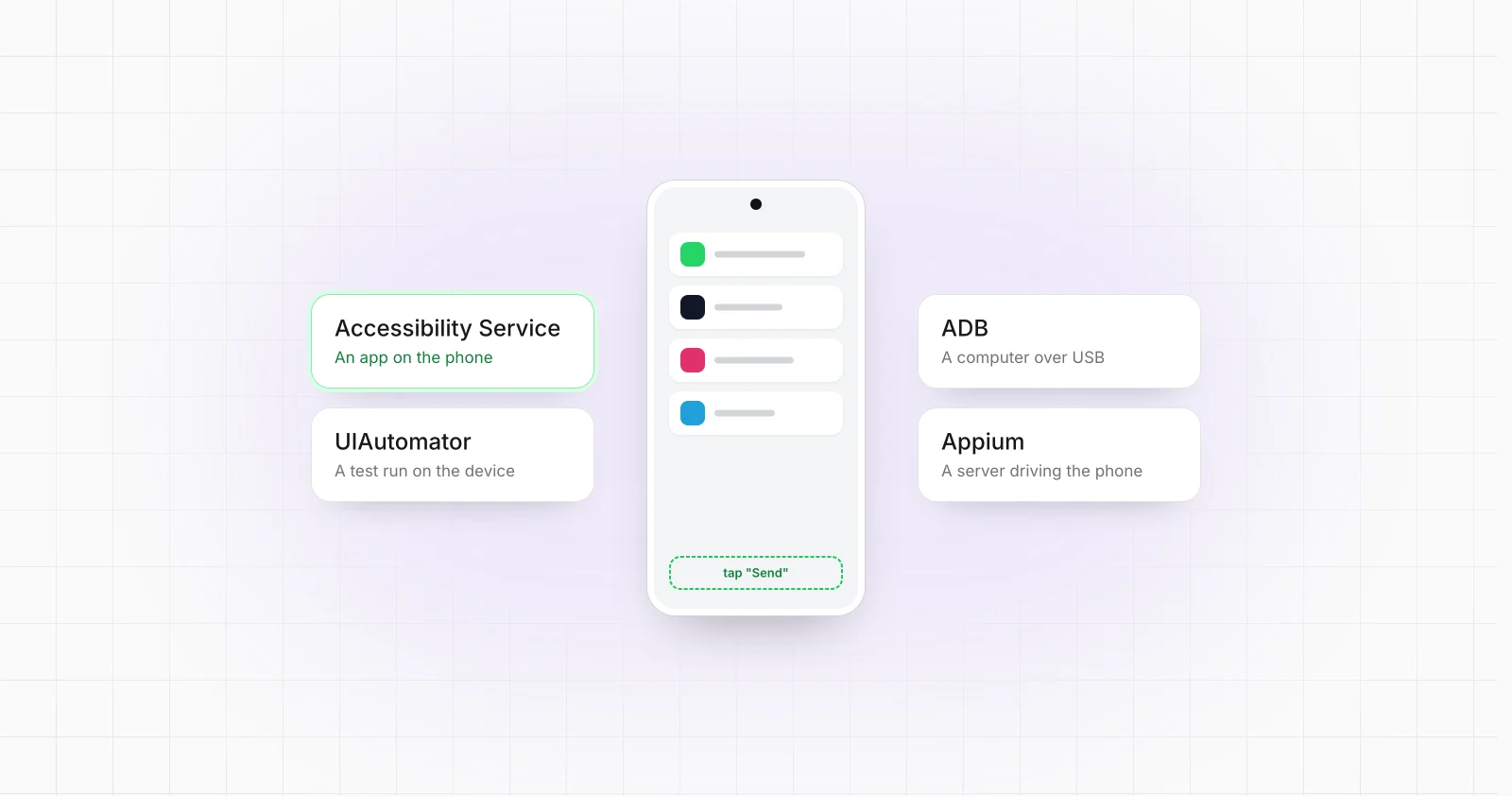
A service that gets switched off. Tasker plugins that drive other apps, like AutoInput, depend on an accessibility service. Android can disable an accessibility service after the app updates or crashes, and some phones switch them off to save power. The profile still triggers, the step that taps the screen silently does nothing.
The phone itself. A restart, a full battery drain, a lost Wi-Fi connection overnight, a lock screen in front of the app the task needs. None of these are bugs in the task, but each one stops it.
Settings that keep Tasker running
Go through these once per phone. On a new phone, or after a major Android update, go through them again.
- Exempt Tasker from battery optimization. In the system settings, set Tasker (and every plugin it relies on, such as AutoInput) to unrestricted or not optimized. This is the single change that fixes the most cases.
- Allow it to start on its own. Some phones have a separate autostart or background launch permission. Without it, Tasker does not come back after a restart.
- Keep Tasker's notification. Tasker shows a permanent notification so Android treats it as an app in use. Hiding the notification channel is fine; removing the service behind it is not.
- Use reliable alarms. In Tasker's preferences, the monitor settings let it use alarms that are allowed to wake the device. On Android 12 and later, also allow Tasker to schedule exact alarms when it asks.
- Lock Tasker in recents. Many launchers let you pin or lock an app in the recent apps view so the manufacturer's cleaner skips it.
- Re-check accessibility after updates. When Tasker or a plugin updates, open the accessibility settings and confirm its service is still on.
- Plan for the lock screen. A task that has to operate another app cannot do it behind a secure lock screen. Either the phone stays unlocked in a controlled place, or the task wakes and unlocks it first where your setup allows that.
Notice when it fails
The most expensive failure is the one nobody notices. A few habits turn a silent failure into a message.
- A heartbeat. Add a time profile that sends an HTTP request to an uptime monitoring service every 15 or 30 minutes. If the requests stop, the service alerts you. It is the simplest way to learn that the phone, Tasker or the network has gone quiet.
- Handle errors in the task. Tasker can continue a task after an action fails and exposes the error in a variable. Check it, and send yourself a notification, an email or a message when a step that matters did not succeed.
- Keep a log. Append one line per run to a file or a Google Sheet: the time, the task, the result. When something does go wrong, the log tells you since when.
- Test after every app update. A task that taps a button inside another app breaks when that app moves the button. If the job matters, run it by hand after the app updates rather than waiting for it to fail on its own.
When a single phone is the wrong place
For a personal phone doing one job, Tasker with the settings above is usually all you need. It is genuinely good software, and a well set up phone can run a profile for months.
The picture changes when the automation becomes part of a business:
- It runs on more than one phone. Every setting above has to be repeated, and checked again after every update, on every device. Keeping ten phones healthy by hand is a job in itself, and doing it for a whole phone farm is a different kind of work.
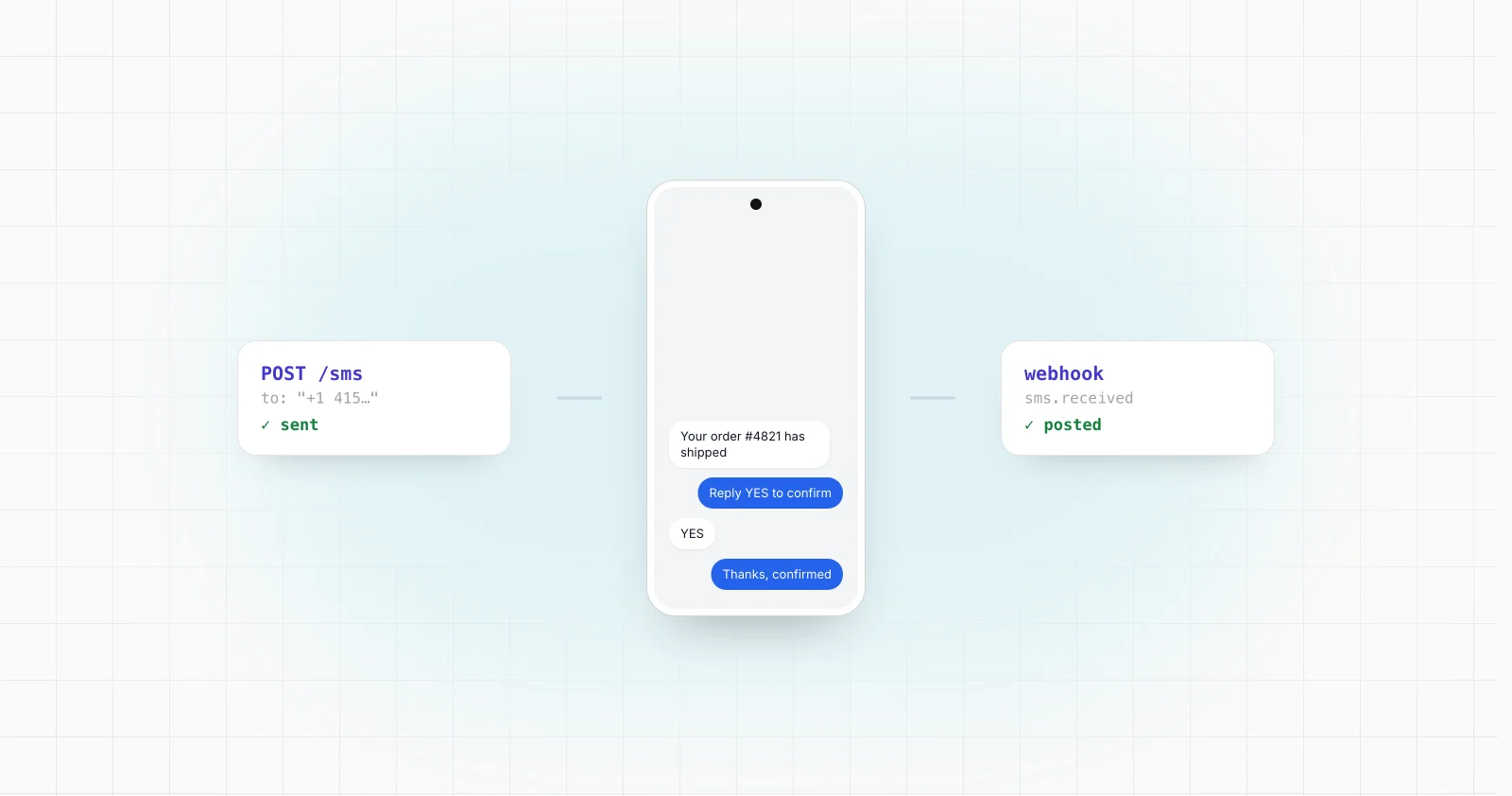
- Your backend needs to start it and hear back. A task fired by your system has to report whether it actually happened. That is the difference between a phone running a script and a phone working as an endpoint your backend can call.
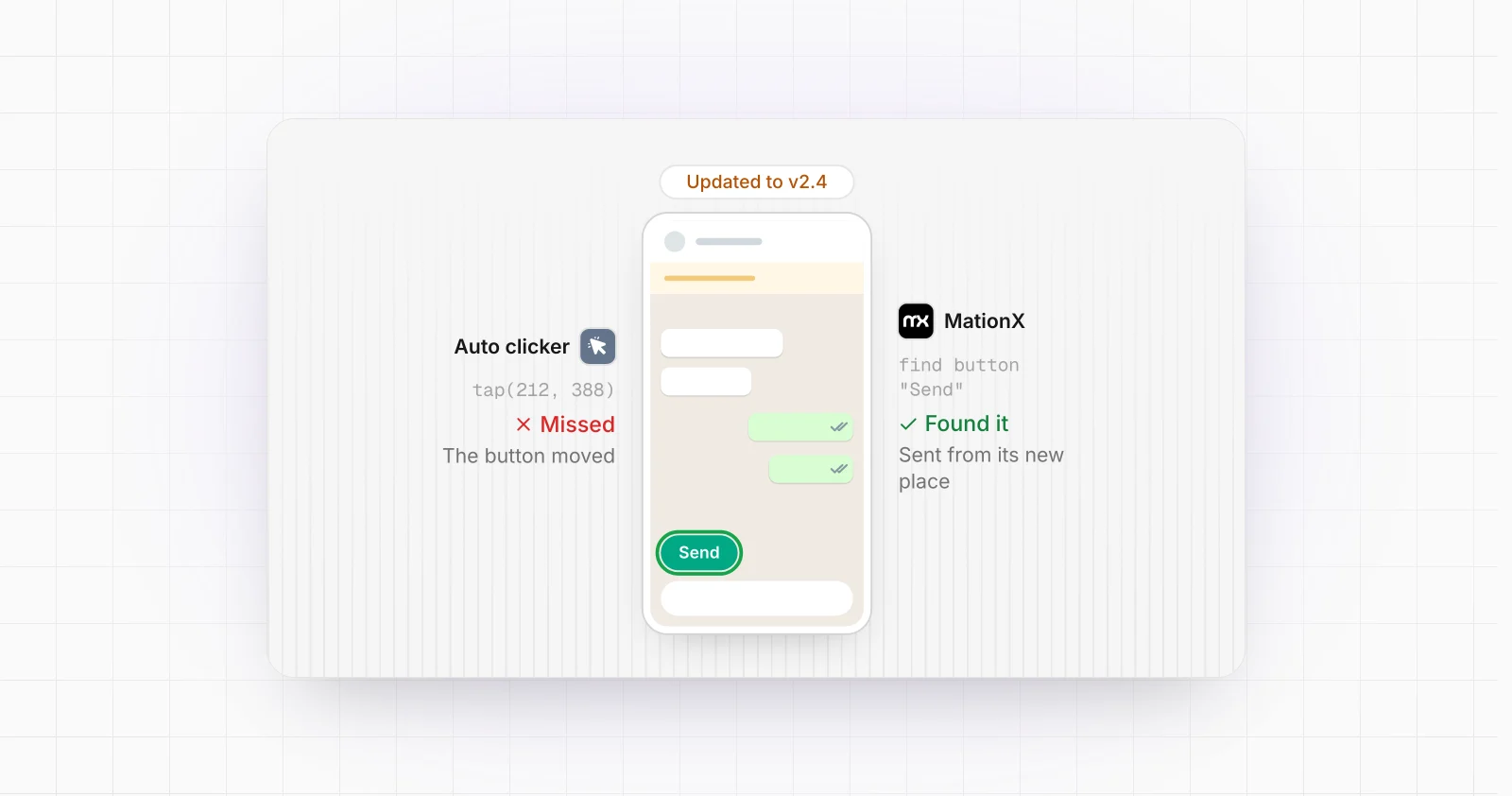
- Someone has to fix it when an app updates. Apps change their screens all the time. A step that taps fixed coordinates misses the moment a button moves.
This is the work the MationX Client is built for. It is an Android app that runs on each phone and works the real apps through the Accessibility API, reading the screen's elements rather than tapping positions, so a moved button is still found. It starts again after a restart, keeps running in the background, picks up commands it missed while offline, and reports every step back, so a failure shows up instead of hiding. It can also be started from a Tasker task, so an existing setup does not have to be thrown away.
Tasker or something more?
A quick way to decide:
| Your situation | What fits |
|---|---|
| One phone, a personal job, you can check on it now and then | Tasker, with the settings above |
| One phone, but the job matters and must not fail silently | Tasker, plus a heartbeat and error alerts |
| Several phones, or a job your backend starts and needs a result from | An app like the MationX Client on each phone |
| A fleet of phones in daily production use | Phone farm automation, built and run for you |
If you want a Tasker or AutoInput project built for you, on your own phone, that is a separate service: see custom Tasker projects. And if the job has outgrown one phone, tell us what it should do and you get an honest answer about which of the above it needs.