How it works11 min read
How to Turn Android Devices Into an API
Written by Petr Kynčl
A backend cannot normally send an HTTP request directly to an arbitrary Android phone and tell a third party app what to do.
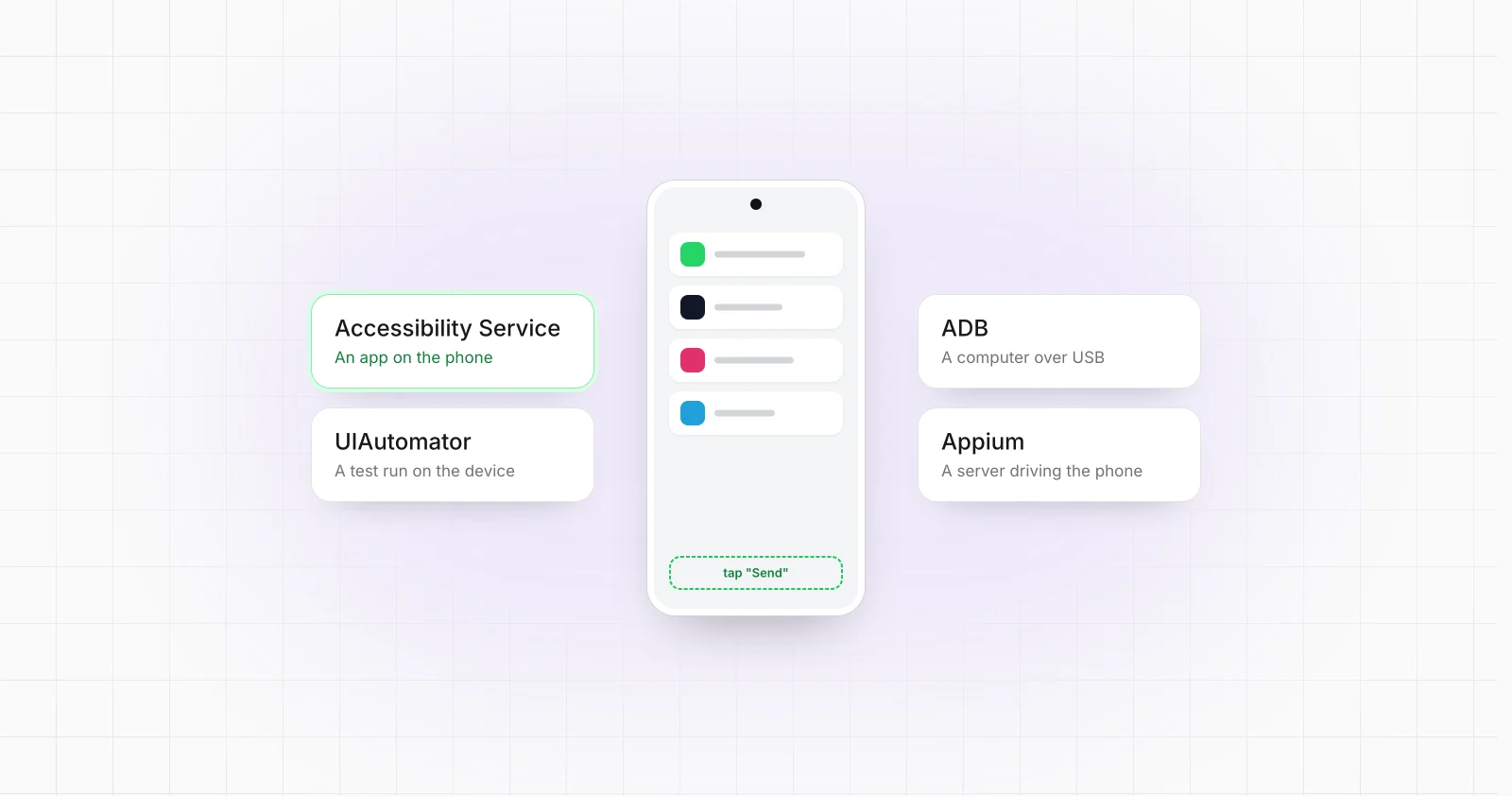
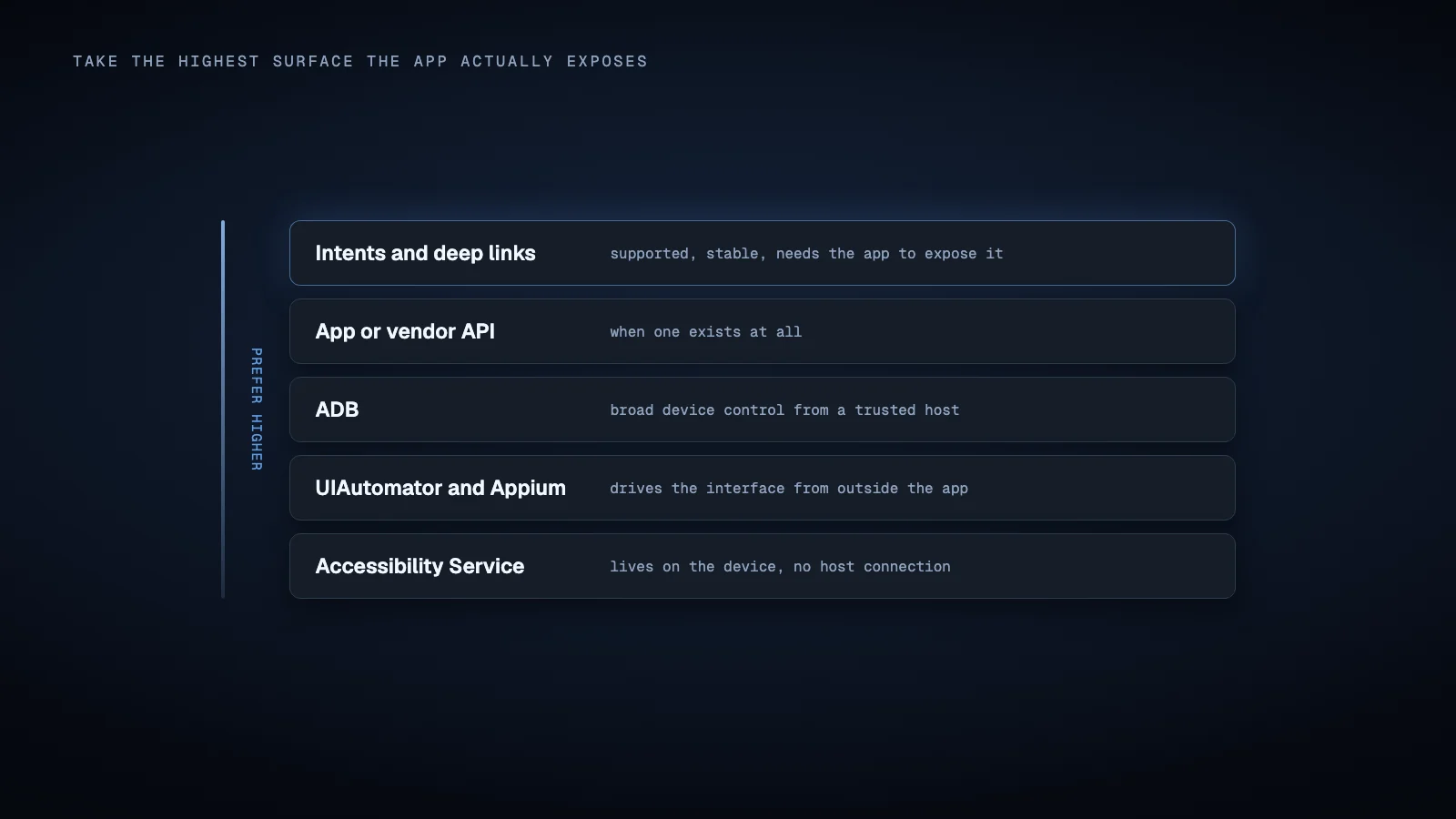
Android does not expose a universal REST API for operating installed applications. What it does provide is a collection of narrower mechanisms such as intents, app components, debugging through ADB, testing through UI Automator, accessibility services, and APIs for specific management scenarios. Each operates under different permissions and assumptions.
Turning an Android device into an API therefore means adding an integration layer around the device. Doing it for more than one device at a time is a further step again.
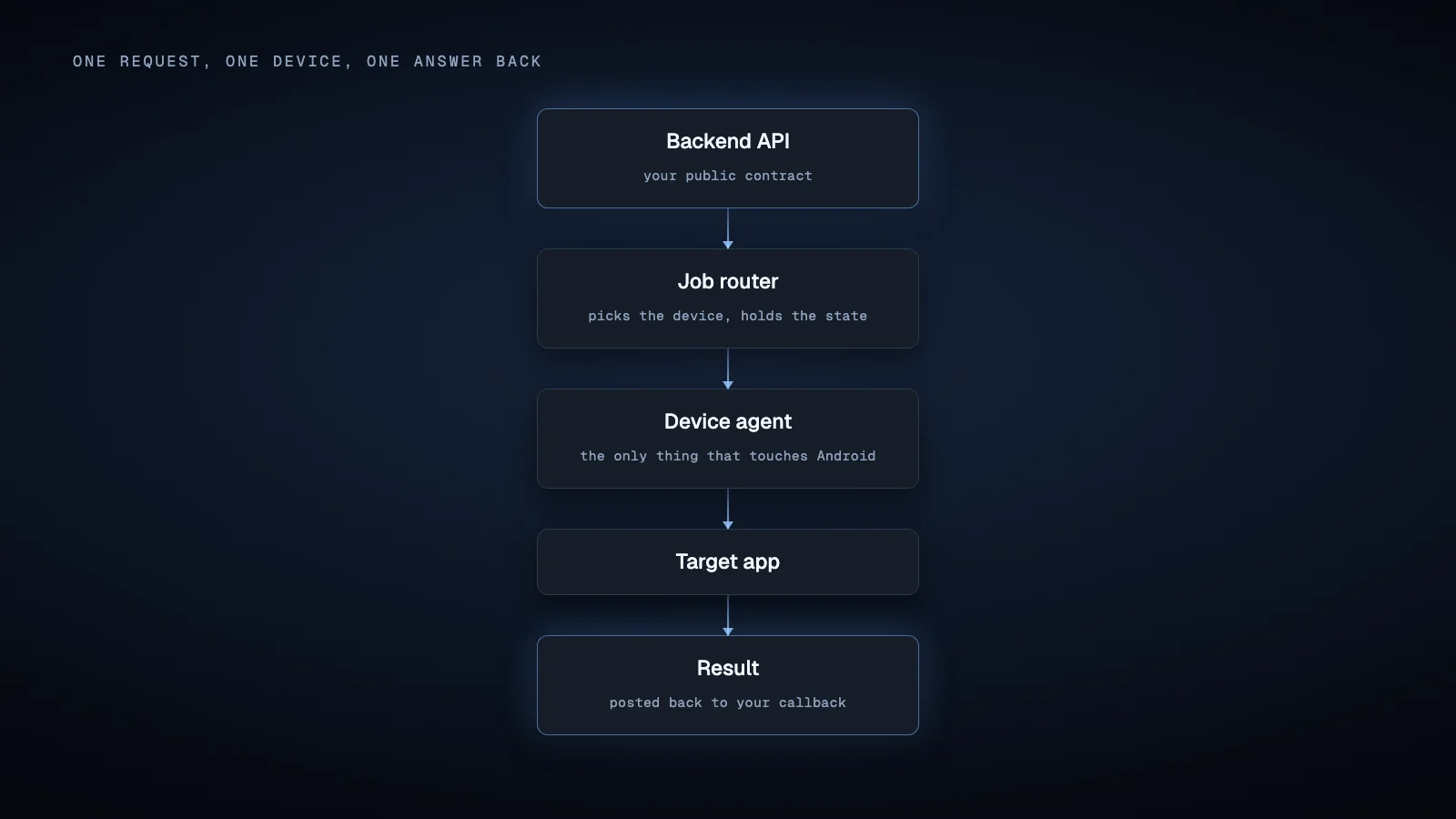
A useful architecture looks more like this:
Backend API → job router → Android device or device agent → target app → result → backend callback
The important engineering decision is not whether the public interface uses REST, GraphQL, WebSockets, or something else. It is how a command received by your backend becomes an allowed action on the Android device.
Start with the highest level interface the target app exposes
Before automating the screen, determine whether the app already provides a supported Android entry point.
Android intents are messaging objects that let one component request an action from another component. Apps can expose activities, services, and broadcast receivers that respond to particular intents. Deep links use the same underlying intent resolution system to route a URI into an activity.
If you own the target application, this is usually preferable to UI automation.
For example, instead of remotely telling a phone to tap through five screens, your application could intentionally expose an internal action such as:
myapp://orders/123/open
or provide a component that accepts structured input.
Your device agent can translate a backend job into that Android operation.
This approach is still not a remote Android API by itself. Intents are primarily an Android component communication mechanism. The network facing API remains something you design around them.
Deep links also need normal security controls. Android specifically recommends validating incoming parameters and verifying relevant web links when sensitive functionality can be reached through them.
ADB provides a powerful device control surface
When the application does not expose useful integration points, Android Debug Bridge is one of the most direct ways to control a device from external software.
ADB uses a client, an ADB server on the host, and the adbd daemon on the Android device. Google documents commands for installing applications, transferring files, opening a shell, targeting particular connected devices, starting activities, broadcasting intents, and performing other development operations.
That makes it straightforward to put an API in front of ADB.
For example:
POST /devices/device_42/apps/com.example.app/start
POST /devices/device_42/screenshot
POST /devices/device_42/workflows/check_status
Your backend can resolve device_42 to an ADB serial and execute the required command on the correct host.
ADB is particularly natural when phones are physically connected to machines by USB or available through an intentionally configured debugging connection. Android also supports wireless debugging with explicit pairing on supported Android versions. Debugging authorization exists for a reason, so ADB should be treated as a privileged control channel rather than exposed directly to the public internet.
An API that accepts unrestricted adb shell strings from arbitrary callers would also expose a much larger attack surface than an API containing a small allowlist of operations.
UI Automator turns visible Android interfaces into programmable objects
ADB can launch applications and send device commands, but business workflows often require understanding what is currently displayed.
UI Automator is Android's own framework for user interface testing across applications. It can interact with user apps and system apps from outside the target app process. Its APIs can locate elements based on properties such as text, accessibility information, and resource identifiers, then interact with those elements.
This makes UI Automator useful as an execution layer for a device API.
A workflow might conceptually perform:
open target app
wait for element where resource id = "search"
enter query
tap submit
wait for result element
read result text
return structured output
The important limitation is that UI Automator is officially a testing framework. It does not turn every Android application into a stable programmatic interface.
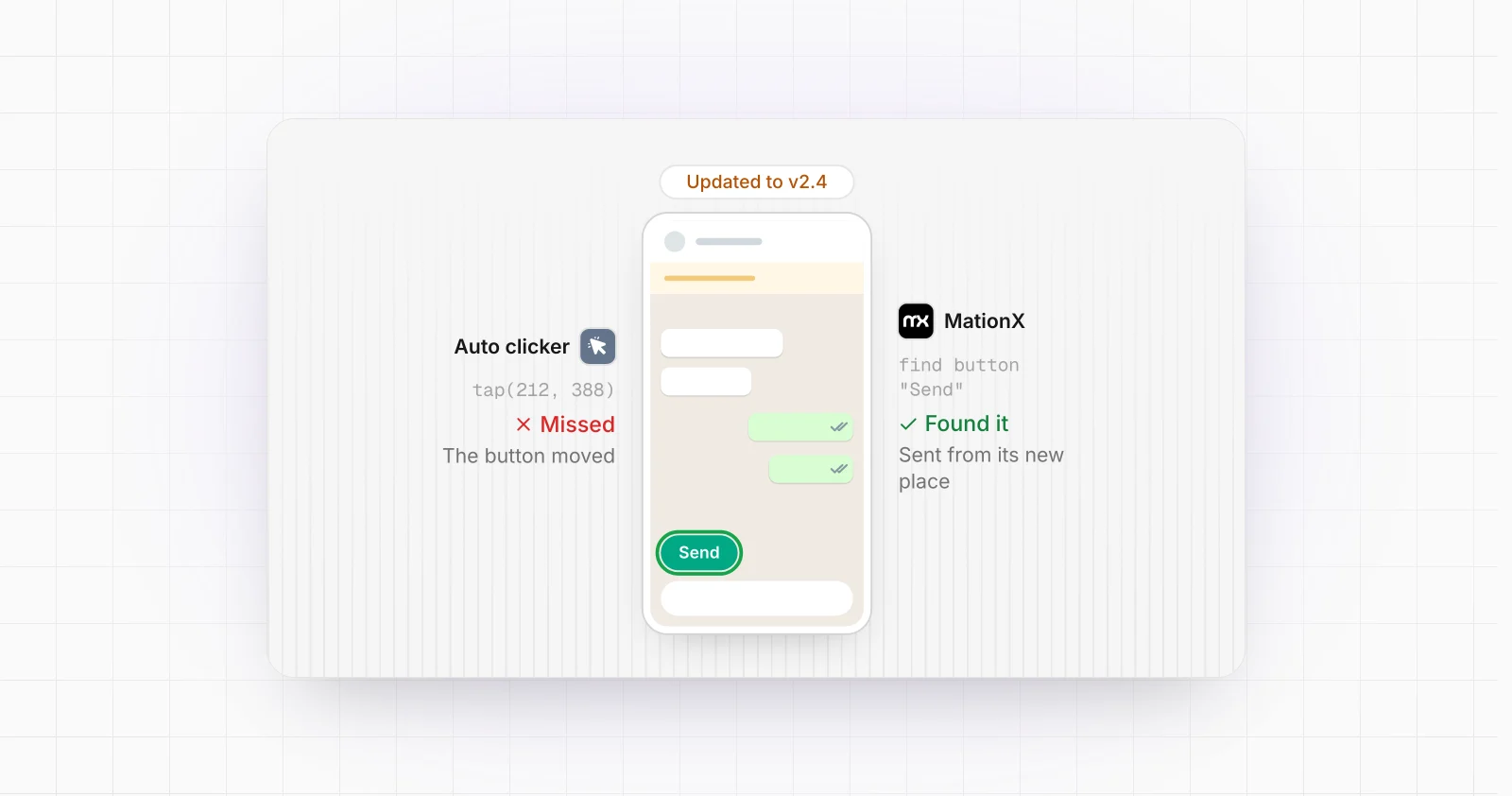
The automation remains dependent on what the application exposes through its visible interface and accessibility hierarchy. Application updates, different screen states, permission dialogs, manufacturer differences, localization, and dynamically rendered interfaces can change what the automation sees.
Appium provides a ready made remote automation protocol
Building your own UI Automator controller is not always necessary.
Appium provides a client and server architecture for device automation. For Android, its UiAutomator2 driver can run an automation server on the device and translate Appium commands into lower level UI Automator operations. Appium exposes operations for application management, finding elements, gestures, context switching, and other automation tasks.
This already resembles an API because automation clients communicate with an Appium server using the WebDriver model. Which of those layers you want is its own decision.
That can be useful when your requirements are close to testing:
create session
find element
click element
read attribute
take screenshot
end session
For a production business integration, however, exposing Appium commands directly is often too low level.
A backend normally benefits from a domain specific API such as:
POST /v1/jobs

{
  "device_id": "device_42",
  "workflow": "retrieve_order_status",
  "input": {
    "order_id": "12345"
  },
  "callback_url": "https://client.example/callbacks/android",
  "idempotency_key": "req_9182"
}
Appium can remain behind that API as the execution technology.
The caller should not need to know which button must be tapped.
Accessibility services are another control surface, but not a general automation API
A custom Android agent can also use an AccessibilityService to observe interface events and, when appropriately configured, inspect active window content or perform supported accessibility actions and gestures.
That can make an accessibility based agent attractive for software that needs to react to changes on the device without running an external UI test for every action.
There is an important distinction, however. Android's documentation explicitly defines accessibility services as facilities intended to assist users with disabilities. The service is enabled by the user through Android settings, and its lifecycle is managed by the system.
Accessibility therefore should not be described as Android's official general purpose automation interface. Whether it is appropriate depends on the product, distribution method, permissions, Android version, target application, and applicable platform policies.
Device management APIs solve a different problem
Android enterprise management should also not be confused with arbitrary app automation.
Google's Android Management API can issue supported management commands to enrolled devices, including specific device administration operations. That does not mean it provides a generic command for navigating through any installed app's user interface.
Device management and application automation can exist in the same system, but they address different layers.
The device agent architecture
For devices that are not permanently attached to an ADB host, installing your own agent application creates a cleaner architecture.
The agent typically has four responsibilities.
Device registration
When provisioned, the agent identifies itself to the backend and receives credentials tied to that device.
The backend should maintain its own device identifier rather than forcing API clients to depend on an ADB serial, IP address, or another transport specific identifier.
Command delivery
The agent needs a way to learn that work is available.
A persistent WebSocket can provide two way communication over one connection. WebSocket is a standardized protocol designed for bidirectional communication between client and server.
Polling is simpler. The device periodically asks the server for another job.
Firebase Cloud Messaging can also act as a notification mechanism. An Android application can receive data messages through FirebaseMessagingService, although message handling is subject to Android process and background execution rules. Firebase recommends moving work that outlives the short message handling window into an appropriate background mechanism such as WorkManager.
FCM is therefore better viewed as a signal that work exists rather than as your entire durable job queue.
Command execution
The agent maps the job to the strongest available control mechanism.
That might be an intent for one workflow, an application specific integration for another, an accessibility action for another, or communication with an ADB or Appium controller elsewhere.
This adapter layer is what prevents your public API from becoming coupled to individual taps and coordinates.
Result reporting
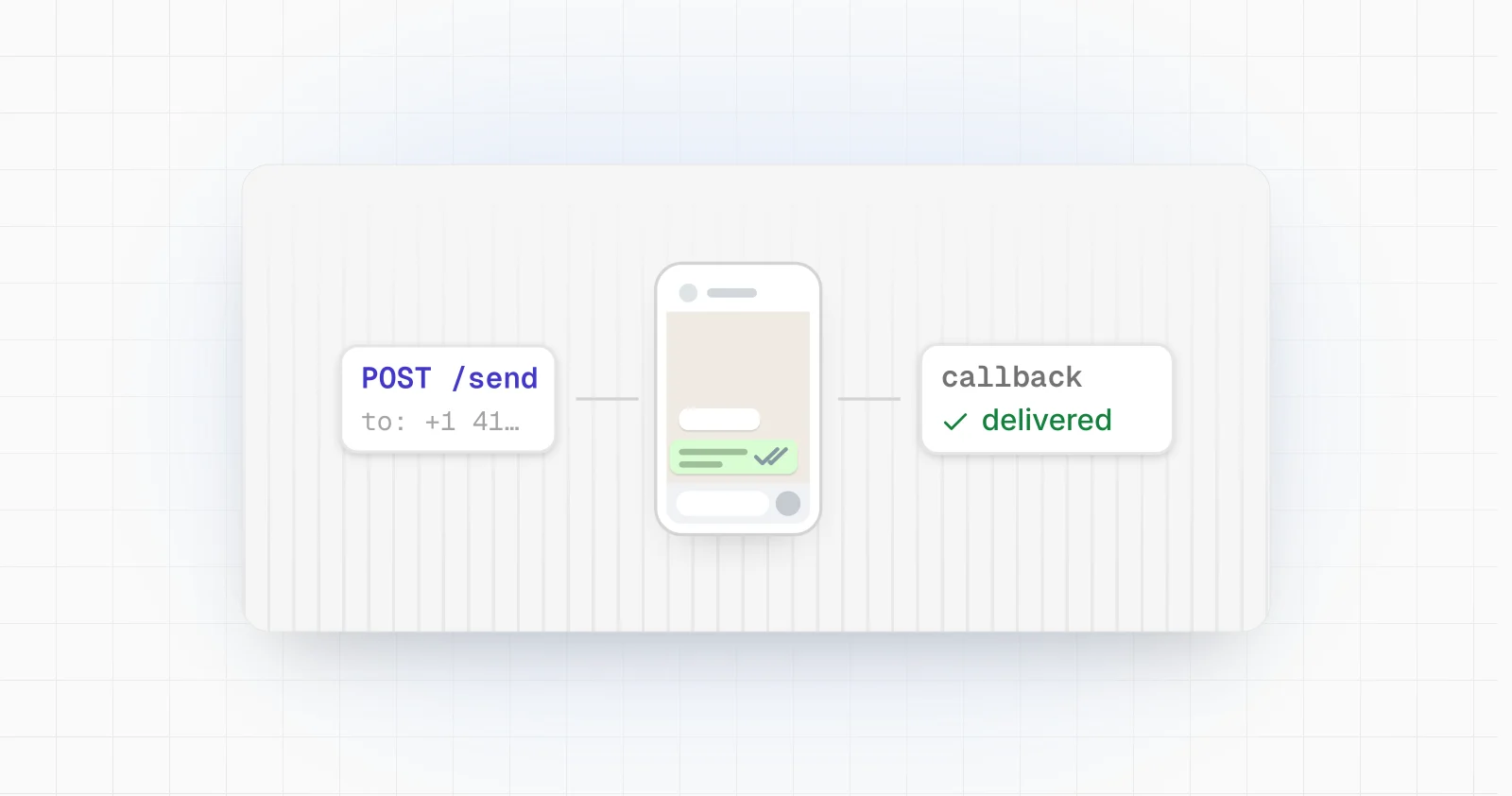
When execution finishes, the agent sends a structured result back to the backend.
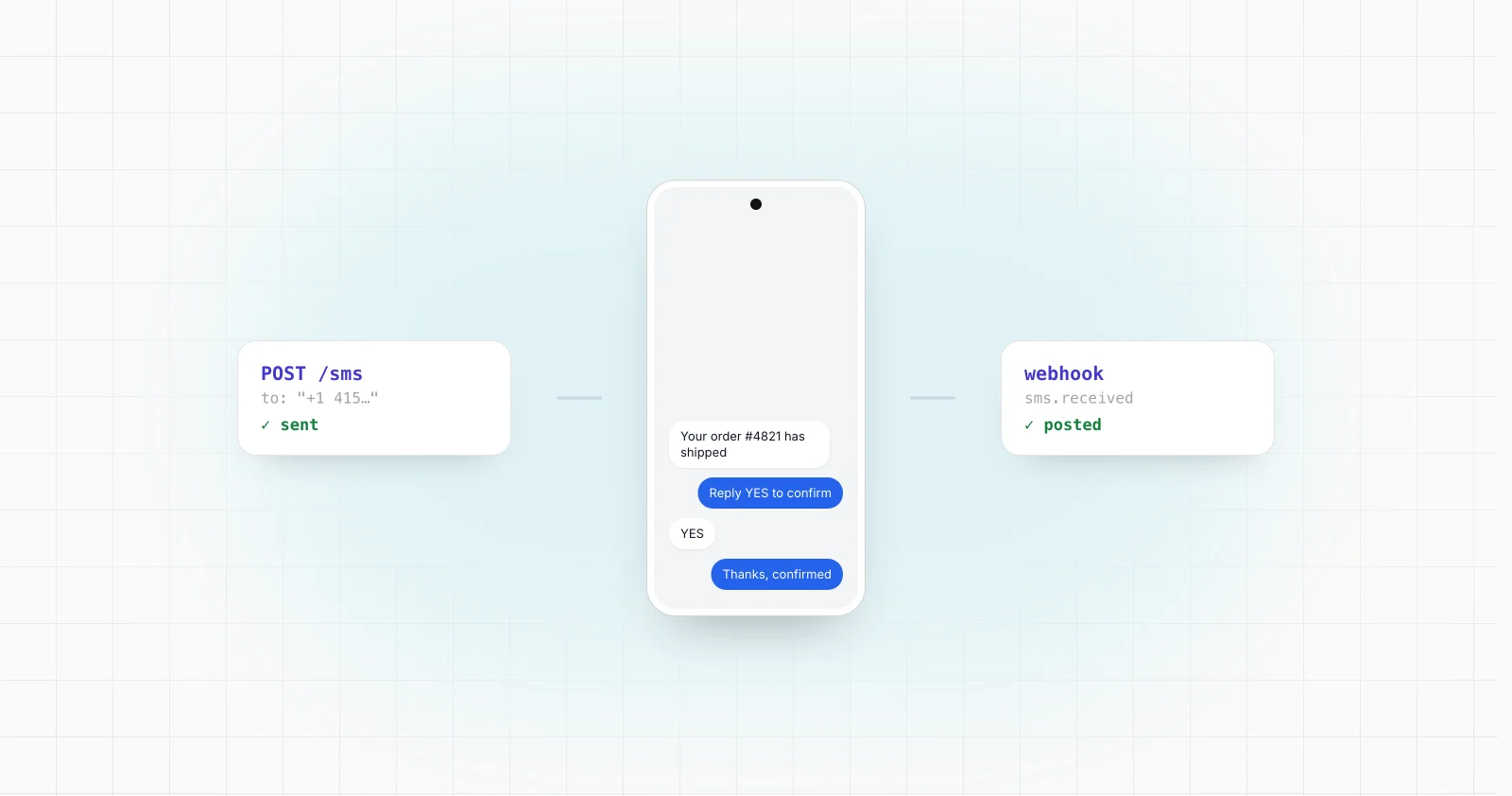
The backend can then expose that result through polling, server sent events, a WebSocket, or an outgoing webhook.
A webhook in this architecture is simply a backend callback. It is not a special Android capability.
Android background rules matter
A common mistake is designing the agent as though Android guarantees that an ordinary application process can run continuously and keep a socket open forever.
It does not.
Android applies background execution restrictions. WorkManager is the recommended mechanism for persistent work that must survive situations such as application exits or device restarts. Foreground services exist for work that is noticeable to the user and come with notifications, declared service types, permissions, and additional restrictions on recent Android versions.
Your communication architecture therefore has to match the workload.
A continuously user visible device control product may have a valid foreground execution model. A device that performs occasional synchronization may be better served by push notifications and scheduled work. Managed or dedicated device deployments may have other options.
There is no single Android background strategy that is correct for every device automation product.
Make the public API describe workflows, not fingers
A low level API might expose:
tap x y
swipe
type text
find element
press back
Those commands are useful internally, but they expose the implementation details of the Android workflow.
A stronger external API exposes the business operation:
POST /accounts/refresh
POST /orders/123/confirm
POST /devices/device_42/workflows/sync
Behind that endpoint, the workflow engine can decide whether the operation uses a deep link, UI Automator, Appium, ADB, or your own Android code.
That separation becomes especially important when the target application's interface changes.
Reliability requires a job model
Remote Android operations should usually be modeled as jobs rather than assuming one HTTP connection stays open until the entire workflow finishes.
Useful job states include queued, assigned, running, succeeded, failed, cancelled, and expired.
Store a unique command identifier and record which device accepted it. Define timeouts. Decide which failures can be retried. Use idempotency keys when repeating the same request could cause an unwanted duplicate action.
A device heartbeat can indicate that the agent is connected, but connectivity alone does not prove that the target app is logged in, responsive, or in the expected state.
For debugging, retain enough context to understand failures, such as workflow version, app version, Android version, timestamps, relevant execution logs, and screenshots when appropriate.
Treat the Android device as a privileged executor
The final architecture should assume that a device can perform actions with meaningful consequences.
Authenticate API callers separately from devices. Give each device its own credential. Restrict which workflow names and parameters it may execute. Validate incoming data before passing it into intents, shell commands, selectors, or URLs.
Use encrypted network transport. Android's Network Security Configuration can control trust settings and cleartext network behavior for applications, and Android documentation recommends secure connections instead of unencrypted traffic.
Webhook destinations should also be authenticated or signed so receiving systems can verify that callbacks genuinely came from your service.
What turning Android into an API really means
There is no single Android feature called a device API.
The practical solution is a layered system.
Android provides the execution primitives. ADB provides an external debugging channel. UI Automator and Appium provide UI control. Intents and deep links provide supported application entry points when available. A custom agent connects the device to backend infrastructure. Your backend adds authentication, job routing, device identity, retries, results, callbacks, and a stable API contract.
MationX is one example of this broader model: it builds and runs the workflows on real Android devices, so backend systems can call an app that has no API.
If your goal is to make an Android workflow callable from existing software, start by defining the business operation you want the API to expose. Then choose the least fragile Android control surface capable of executing it.
Sources
Android Developers, Android Debug Bridge, covering the ADB client, server, device daemon, device targeting, shell access, application management, intents, and wireless debugging.
Android Developers, Intents and intent filters, covering Android component communication and exported application entry points.
Android Developers, Create deep links, covering URI based entry points into Android activities.
Android Developers, Write automated tests with UI Automator, covering cross application UI interaction and element based automation.
Android Developers, AccessibilityService and Create an accessibility service, covering accessibility events, window inspection, gestures, lifecycle, and the intended accessibility use case.
Appium, Appium documentation and the official UiAutomator2 Driver repository, covering Android automation sessions and translation of remote commands into UI Automator operations.
Android Developers, Task scheduling and foreground service documentation, covering persistent work and Android background execution constraints.
Firebase, Receive messages in Android apps, covering FCM message delivery, callbacks, and background processing considerations.
IETF, RFC 6455: The WebSocket Protocol, defining bidirectional WebSocket communication.
Android Developers, Network Security Configuration, covering secure network configuration and cleartext traffic controls.